
💻 Screenshots
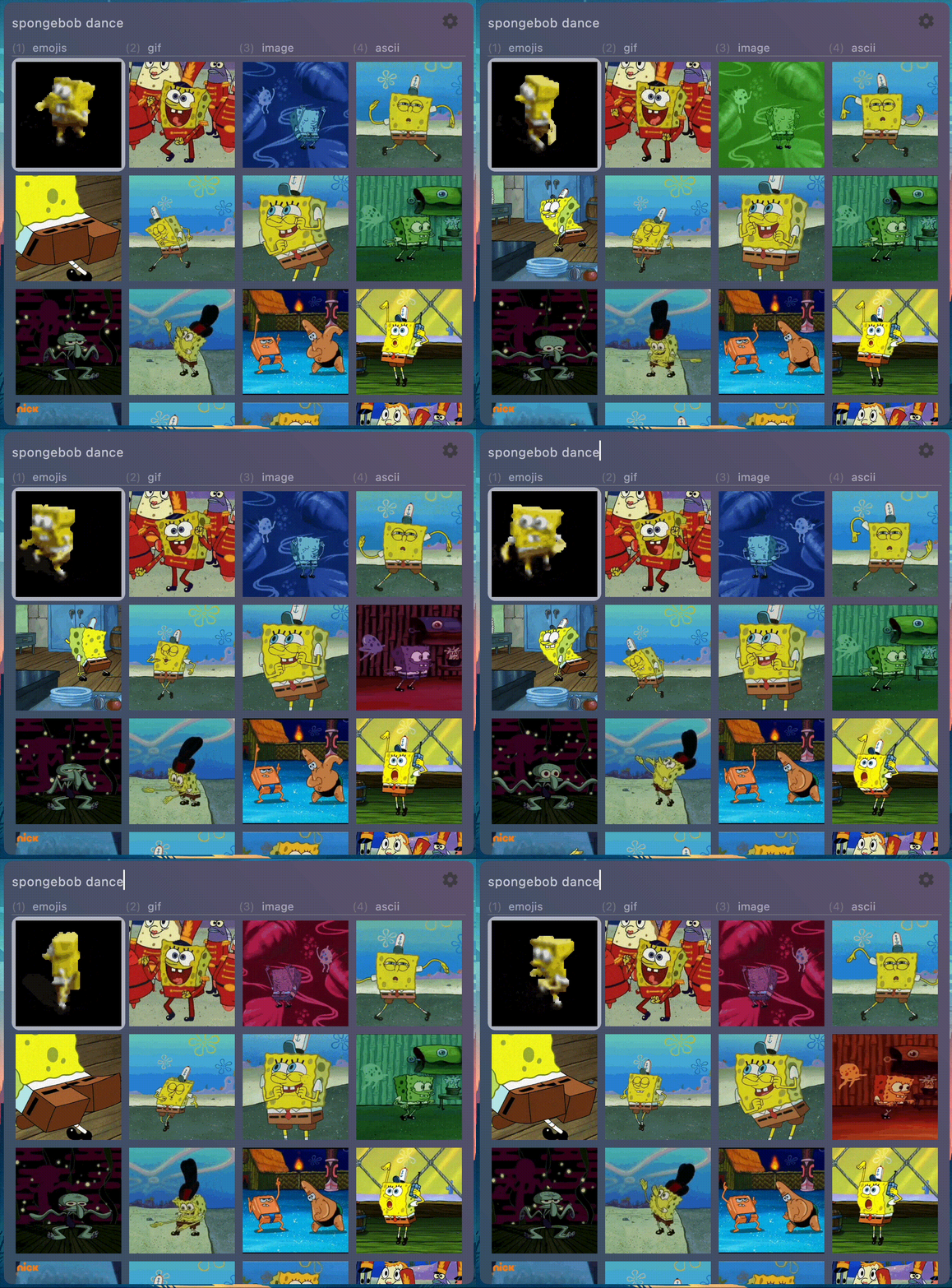
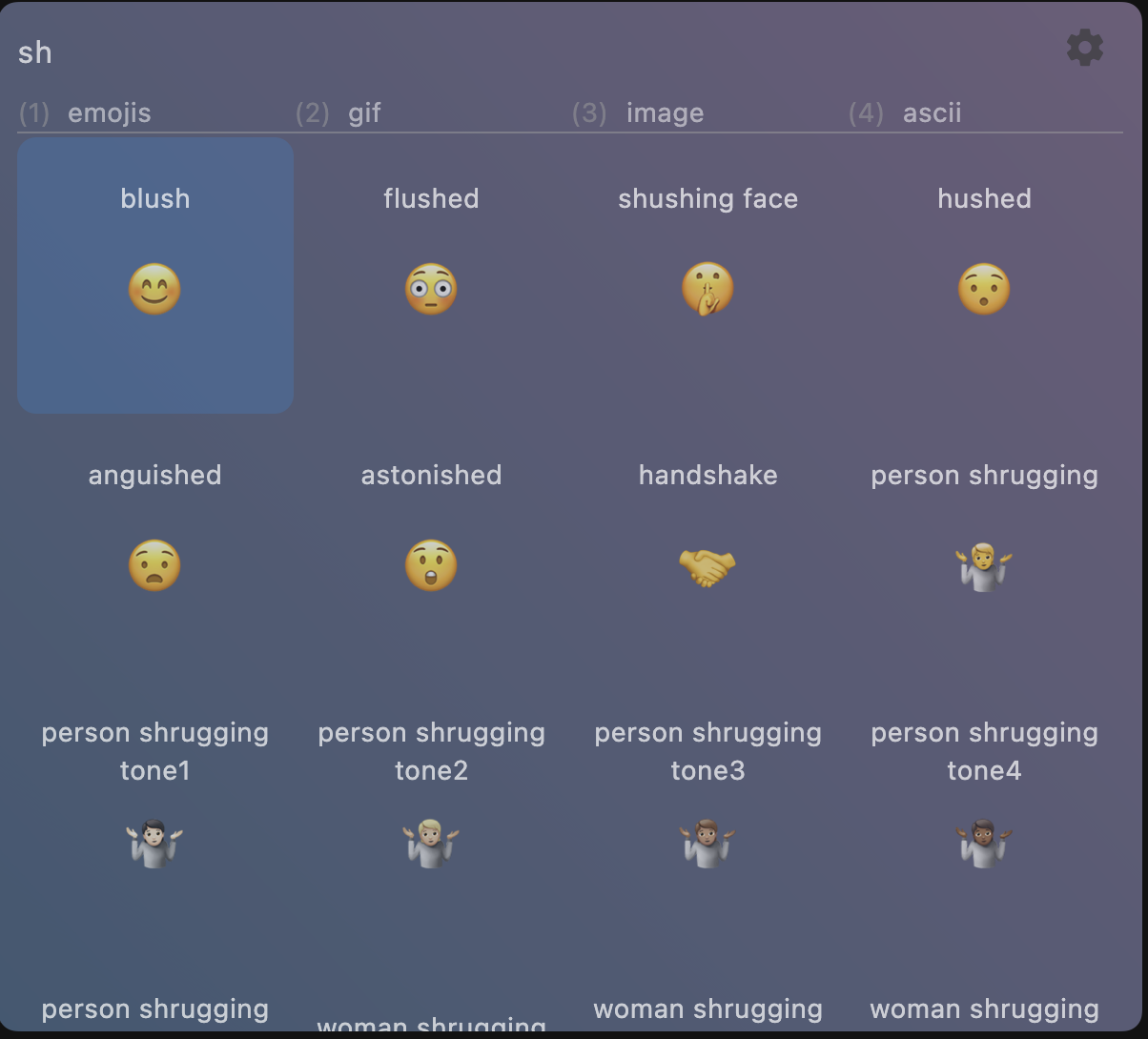
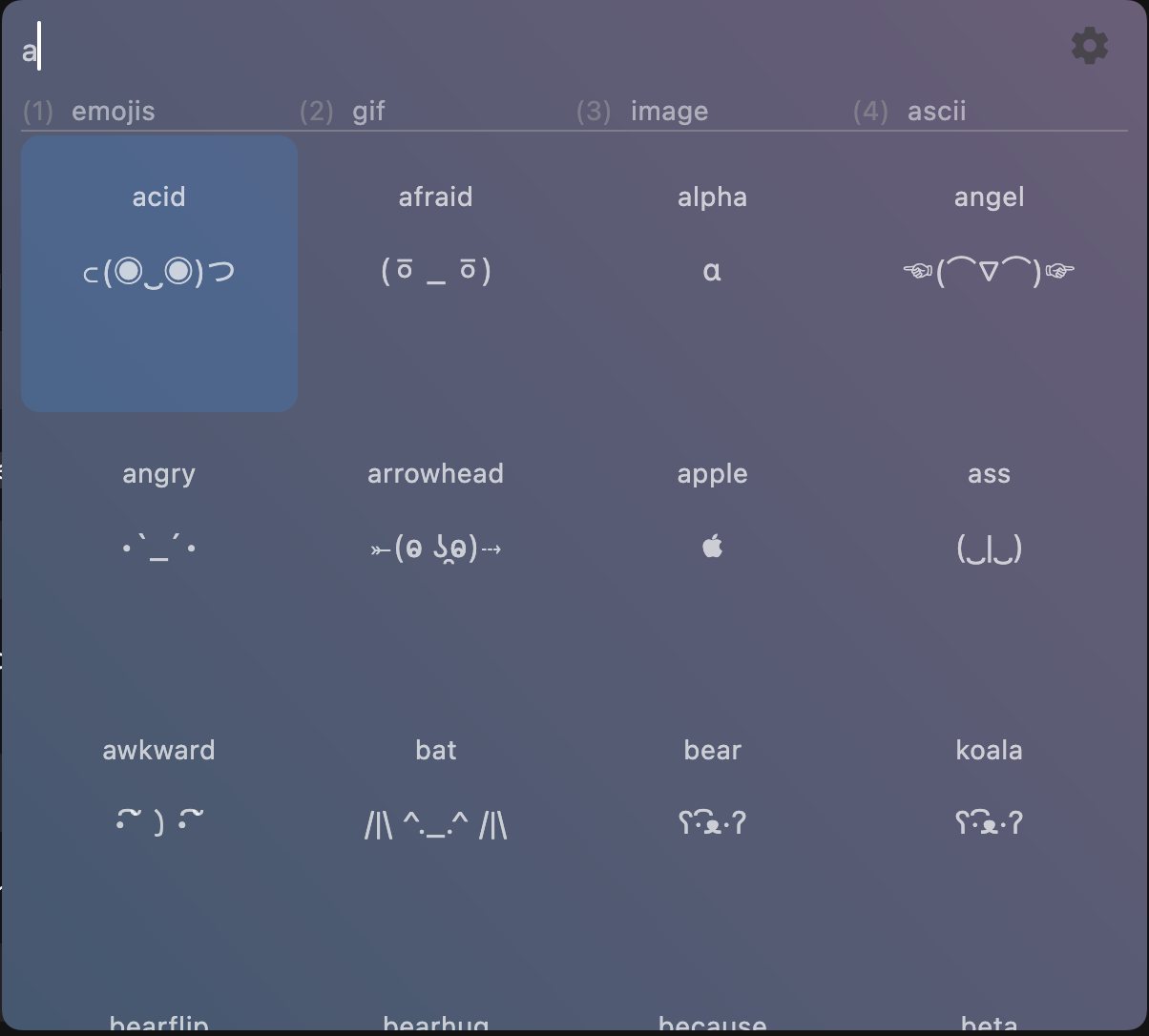
🔥 Installation for macOS
- Download retro_typer.dmg from Releases
- Double click and install the .dmg file
⏩ Set up a shortcut to run retro_typer (macOS)
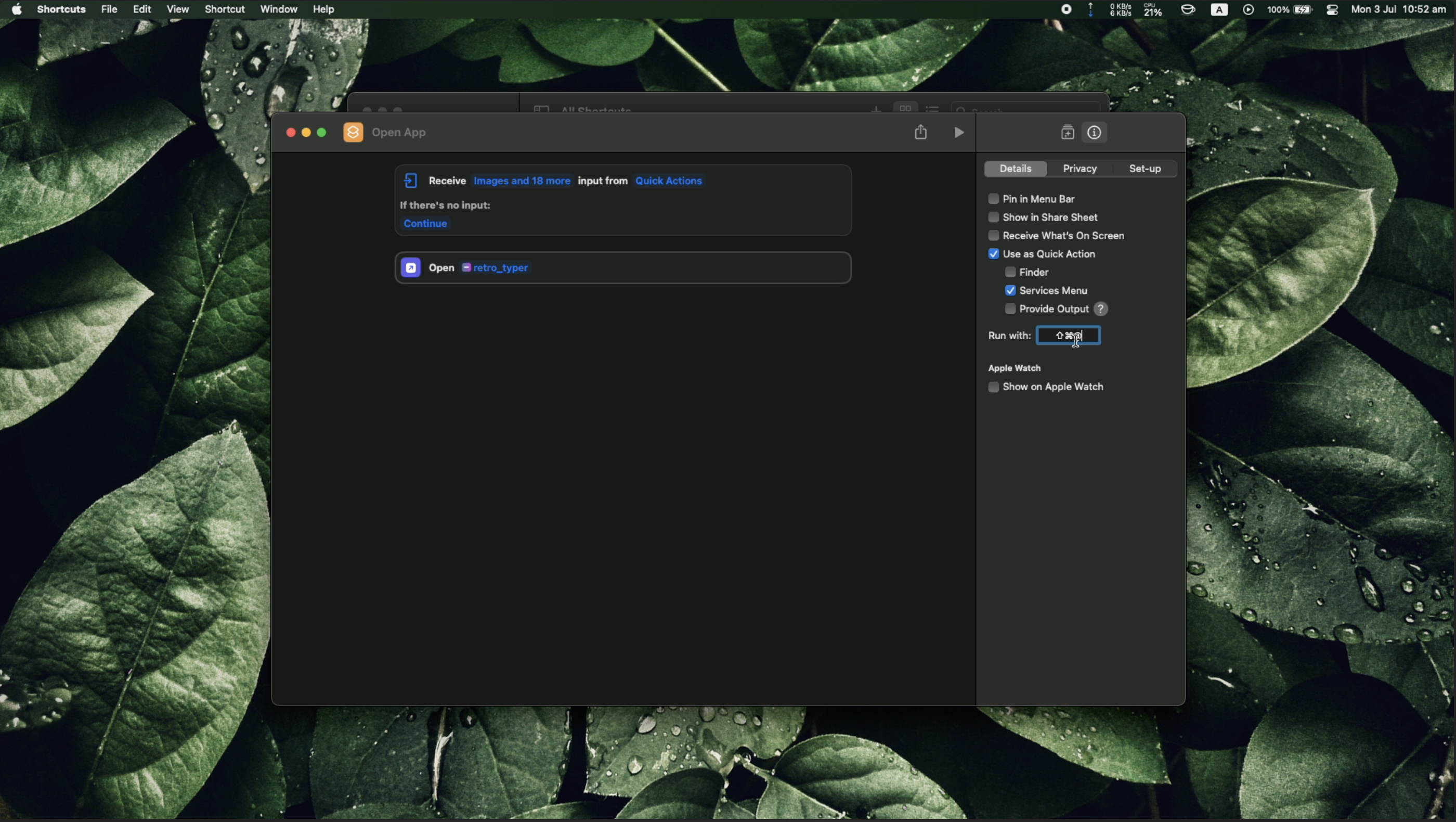
- Open the Shortcuts app in macOS
- Click the plus button at the top right corner to add a new shortcut
- Click the search bar at the top right corner and type "Open App" for the action. Drag open app to the main area.
- Click on the app keyword and find retro_typer
- To set up a keyboard shortcut, click the information icon at the top right corner of the shortcuts app.
- Click "Add Keyboard Shortcut" and add your shortcut key combination, you can press shift + option + 1
- And you're done ! Just press the shortcut anywhere.
🔥 Installation for Windows
- Download windows.zip from Releases
- Extract the zip file
⏩ Set up a shortcut to run retro_typer (Windows)
- Right click on the retro_typer shortcut and click 'properties'
- Click on the 'Shortcut Key' and set up a key like Ctrl + Alt + 1
🛠️ How to use
- Use arrow keys to choose the meme to use
- Press number keys on keyboard to choose type — 1 for ascii, 2 for gif etc
- Press enter to choose. The meme/emoji has been copied to clipboard
⚠️ Known issues
Some shortcuts are already used by macOS itself. Try out a few combinations and see which ones are available.